Tuner
Tuner
Song7's tuner floats beside your chord charts while you play, and also stands on its own at song7.io/tuner — a free page anyone can use without an account.
What it does
- Guitar, bass, ukulele or chromatic — chromatic tunes anything with a pitch (keys, voice, strings)
- Alternate guitar tunings — standard, drop D, half step down and DADGAD
- Follows the string you play — no need to pick the string first
- String lock — tap a string to tune it even when it is far out
- Tuned marks — each string gets a green dot once it has been in tune
- Adjustable reference pitch — A4 anywhere from 430 to 450 Hz
- Floats and collapses to a small pill you can park out of the way
Opening the tuner
In the app
- Open any song, or a setlist in Live View
- Click the toolbox icon
- Choose Tuner
- Press the microphone button and allow microphone access when your browser asks
On the web
Go to song7.io/tuner — no sign-in and nothing to install.
Your microphone audio never leaves your device. The pitch is worked out in the browser and nothing is recorded or uploaded. The microphone turns off when you stop the tuner, close it, or leave the page.
Reading the tuner
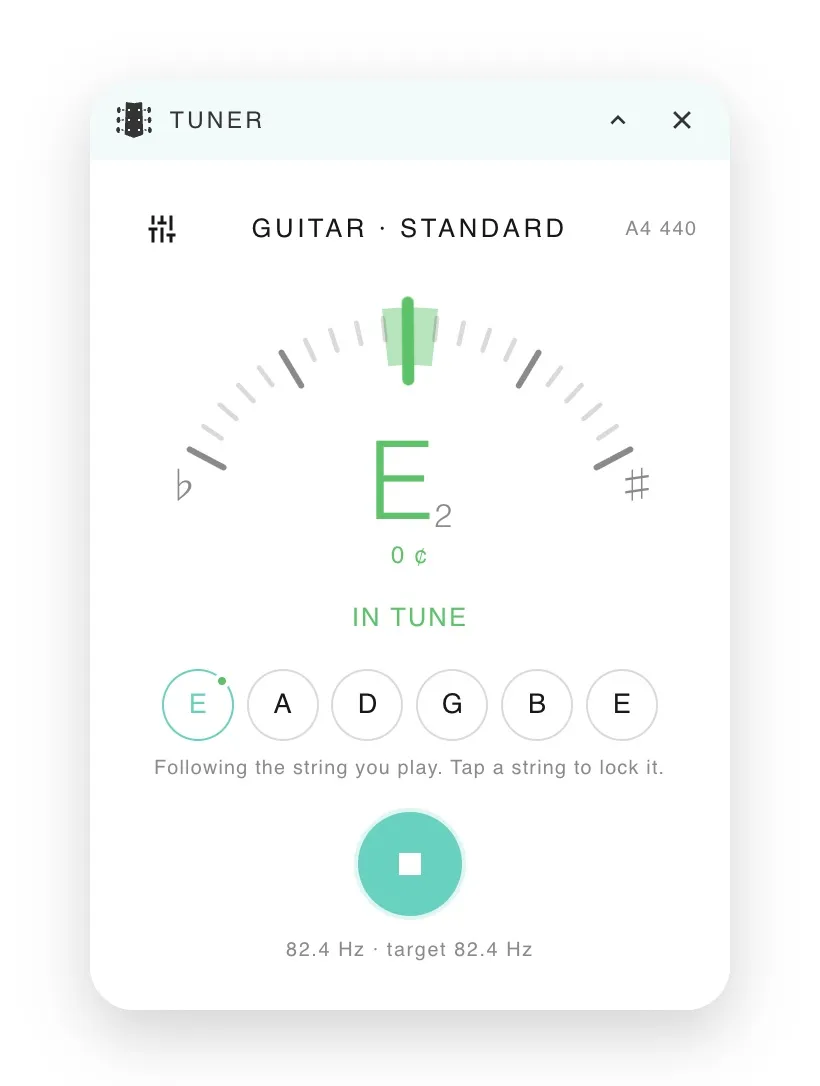
- The big letter is the note you are playing, with its octave next to it
- The pointer swings left when you are flat and right when you are sharp; the green zone in the middle is in tune (within 5 cents)
- The line underneath says Tune up, Tune down or In tune, and shows how many cents off you are
- The small print at the bottom shows the exact frequency you are playing and the target
Strings
With an instrument tuning selected, the tuner shows a row of strings (low to high). It picks whichever string is nearest to the note you play and highlights it.
If a string is so far out that the tuner mistakes it for its neighbour, tap that string to lock onto it. The pointer then always measures against the string you picked, however far off it is. Tap it again to go back to following.
Strings get a green dot once they've been in tune, so you can see which ones are done.
Changing the tuning
Tap the sliders icon (top left) or the tuning name to open the tuning settings:
- Instrument & tuning — chromatic, guitar (standard, drop D, half step down, DADGAD), four-string bass, or ukulele
- Reference pitch (A4) — nearly everything is tuned to 440 Hz, but if the band plays along to a piano, organ or backing track that sits at 442 or 432, set the reference to match it
Your tuning and reference pitch are remembered on this device.
Collapsing & moving
In the app, the tuner floats over the page:
- Drag it by its title bar (or the grip on the collapsed pill)
- Collapse it with the arrow to a small pill showing the note and a mini meter. The tuner keeps listening while collapsed
- Close it with the ✕, which also turns the microphone off
It opens next to the metronome, so you can have both on screen at once.
Tips for better tuning
- Get close to the mic — hold your device near the sound hole or amp
- One string at a time — mute the others so only one note rings
- Pluck, then let it ring — the reading settles after the first attack
- Tune up to the note — if you are sharp, drop below the note and come back up; strings hold pitch better
- Bass on a phone — phone microphones hear low notes least well, so get close and pluck firmly
Best practices
Before rehearsal
- Agree on one reference pitch — check everyone's tuner (and any keyboard) is set to the same A4, usually 440 Hz
- Tune at the end of setup, not the start, once instruments have warmed up to the room
- Play in new strings earlier in the week — fresh strings keep going flat for a day or two
Sunday morning
- Check again a few minutes before the service, after the heating and stage lights have done their work
- Check with the capo on — a capo pulls strings slightly sharp, and not all by the same amount
During the service
The tuner listens through the microphone, so mid-set it will hear the whole band. Tune between songs while the keys hold a pad, or use a clip-on or pedal tuner on stage and keep Song7's tuner for before the service.
For a full Sunday-morning routine, see How should a worship team tune before a service?
Troubleshooting
"Microphone access is blocked"
- Allow the microphone for this site in your browser's site settings, then press the mic button again
"No microphone found"
- Check a microphone is connected, and that another app (a video call, for example) isn't using it
The note jumps around
- Reduce background noise and let one string ring on its own
- If the tuner keeps picking the neighbouring string, tap the string you want to lock onto it
It says I'm in tune but the band sounds off
- Check the reference pitch in the tuning settings matches the rest of the band
Open strings are in tune but chords sound wrong
- If you use a capo, re-check the tuning with it on
- If it happens without a capo too, the guitar may need its intonation set up by a technician
Combining with other tools
- Tuner + Metronome — both open from the toolbox and can sit on screen together
- Tuner + Live View — tune between songs without leaving the setlist
Common questions
Do I need an account? Not for song7.io/tuner. The in-app tuner needs a Song7 account.
Is my microphone audio recorded? No. The pitch is worked out on your device and nothing is stored or uploaded.
How accurate is it? It reads to the nearest cent, and shows in tune within 5 cents of the target.
Can I tune to a piano that isn't at 440? Yes. Play the piano's A above middle C, note how many cents off it reads, and set the reference pitch to match (anywhere from 430 to 450 Hz). Check a few other notes too — a piano can drift unevenly.
Can I use it on my phone? Yes. Hold the phone close to the sound hole or amp. For bass, get close and pluck firmly.
Next steps
- Use the Metronome — keep time once you're in tune
- Explore Live View — all the tools during a set
Need help?
- Check the FAQ
- Contact support